Cutout Design Software for Makers
From quick one-offs to bulk mail merge orders, built specifically for makers
Core Features
The foundation every maker needs, without the learning curve
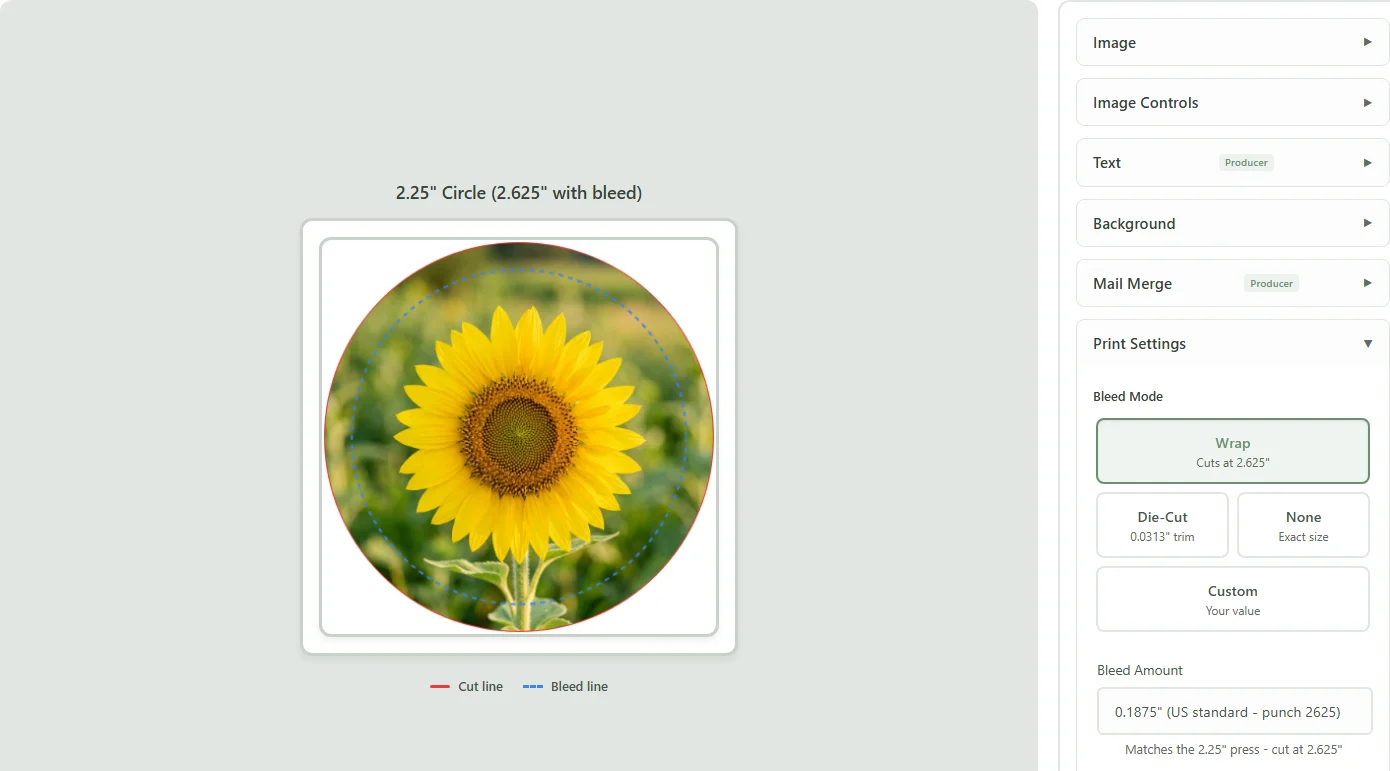
Automatic Bleed Calculation
Bleed is the extra image area that wraps around the edge of your cutout. Get it wrong, and you'll see white edges or cut off important parts of your design. Get it right, and your cutouts look professionally made.
Cutout Designer sets the exact bleed for every size automatically, from the published tooling specs rather than a percentage. Real wrap allowances do not scale evenly: a 1.25" button needs more bleed than a 1.5". We look up the number your press actually uses, so a 1.25" trading pin and a 3" statement button both wrap the shell cleanly.
The bleed ring is visualized in real-time as you position your image. You'll see exactly what will print and what will wrap around the edge. No guessing, no wasted prints.
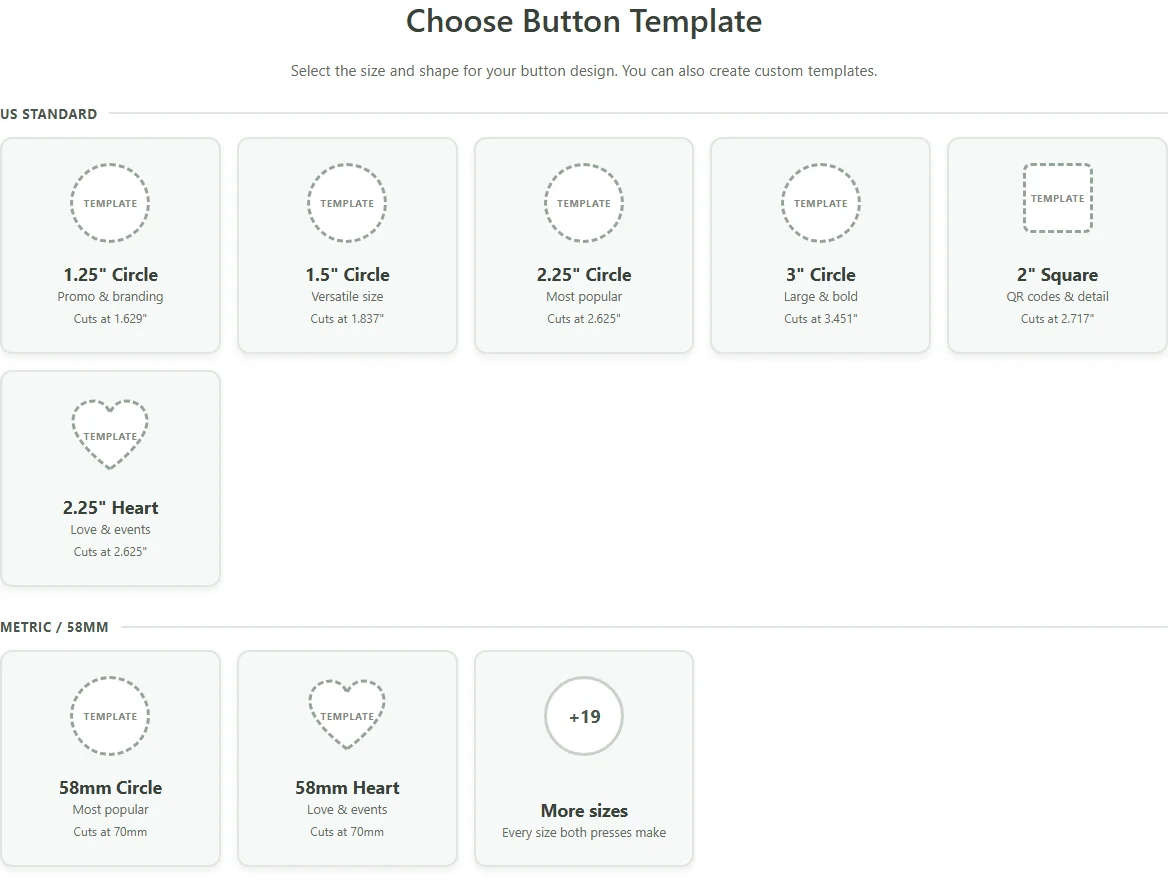
All Standard Cutout Sizes
We support the sizes that actually matter: 1.25", 1.5", 2.25", and 3" circles, 1" to 2" squares, 3.5" and 4" coasters, 2" to 4" cookie toppers, die-cut sticker rounds and rectangles, and a 2.25" heart for Valentine's and weddings. These aren't arbitrary numbers; they match real crafting equipment. Browse all 22 templates.
Each size has its sweet spot. 1.25" cutouts are perfect for collecting and trading. 2.25" is the versatile all-rounder. 3" cutouts make a statement at events and rallies. We've sized the interface and templates to match what makers actually use.
Need a non-standard size or shape? Paid plans let you create custom templates for any dimension your equipment supports. Browse all template sizes.
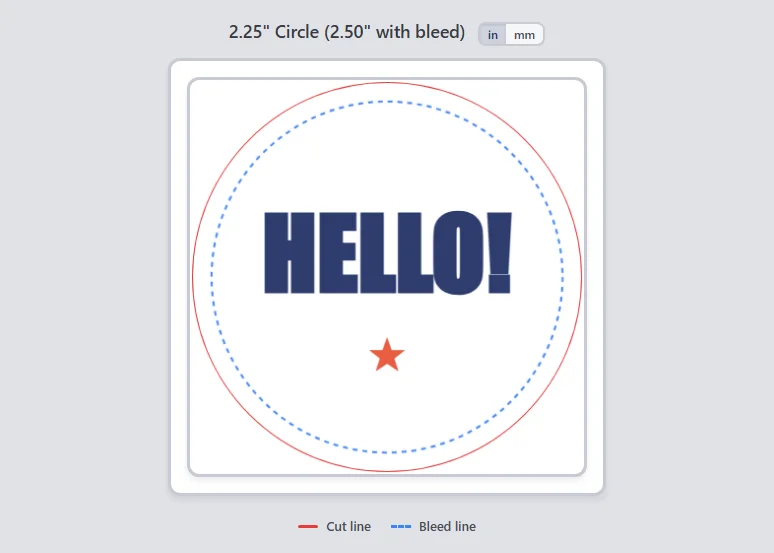
Print-Ready Exports
Download PDFs that are ready to print and cut — no additional processing needed. Cut lines are precisely positioned so your Cricut, Silhouette, or circle cutter knows exactly where to cut.
Our free cutout templates include high-quality PDF exports that work with any printer.
Every export includes proper margins for your paper size. We support letter (8.5x11"), tabloid (11x17"), A4, and more — choose your paper size and we handle the rest.
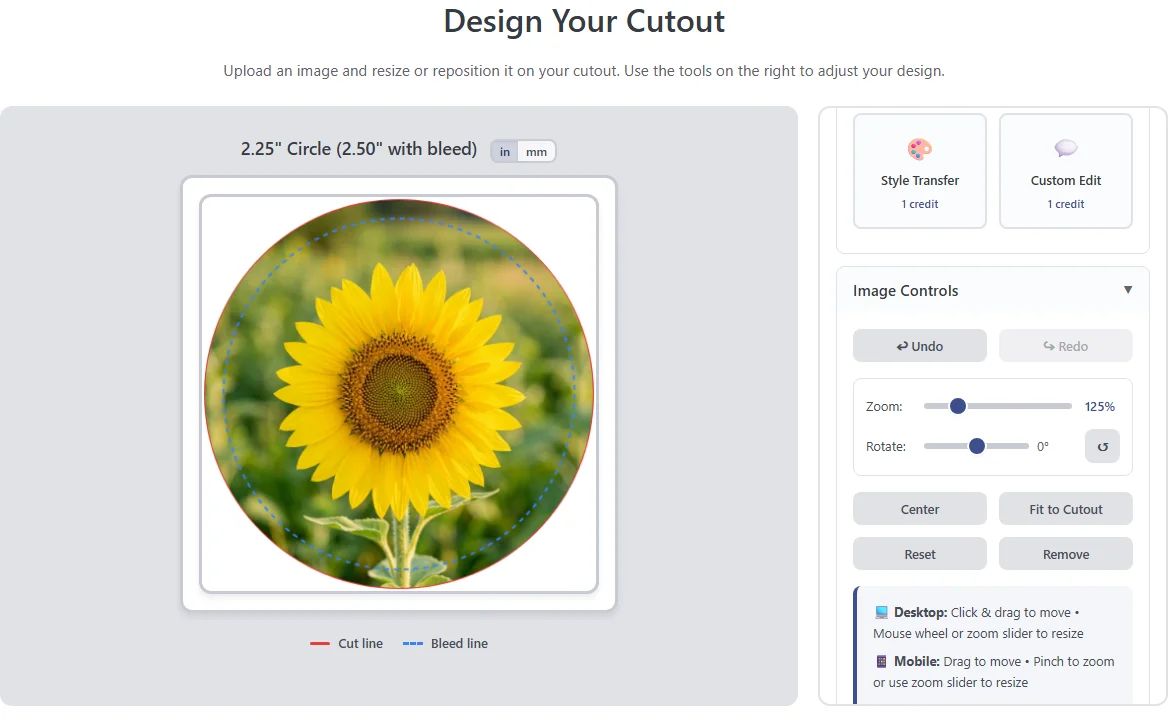
Intuitive Positioning Controls
Drag your image to position it. Scroll or pinch to zoom. Rotate with simple controls. The interface feels natural whether you're on a desktop with a mouse or a tablet with touch.
Visual guides show you the safe zone (what's guaranteed to be visible) and the bleed zone (what might wrap or get cut). Position your key content in the safe zone, let backgrounds extend into the bleed.
The zoom slider lets you precisely control how much of your image fills the cutout. Too zoomed out? You'll see empty space. Too zoomed in? Important details might get cut. The guides help you find the sweet spot every time.
AI-Powered Design Tools
No design skills needed — let AI do the heavy lifting
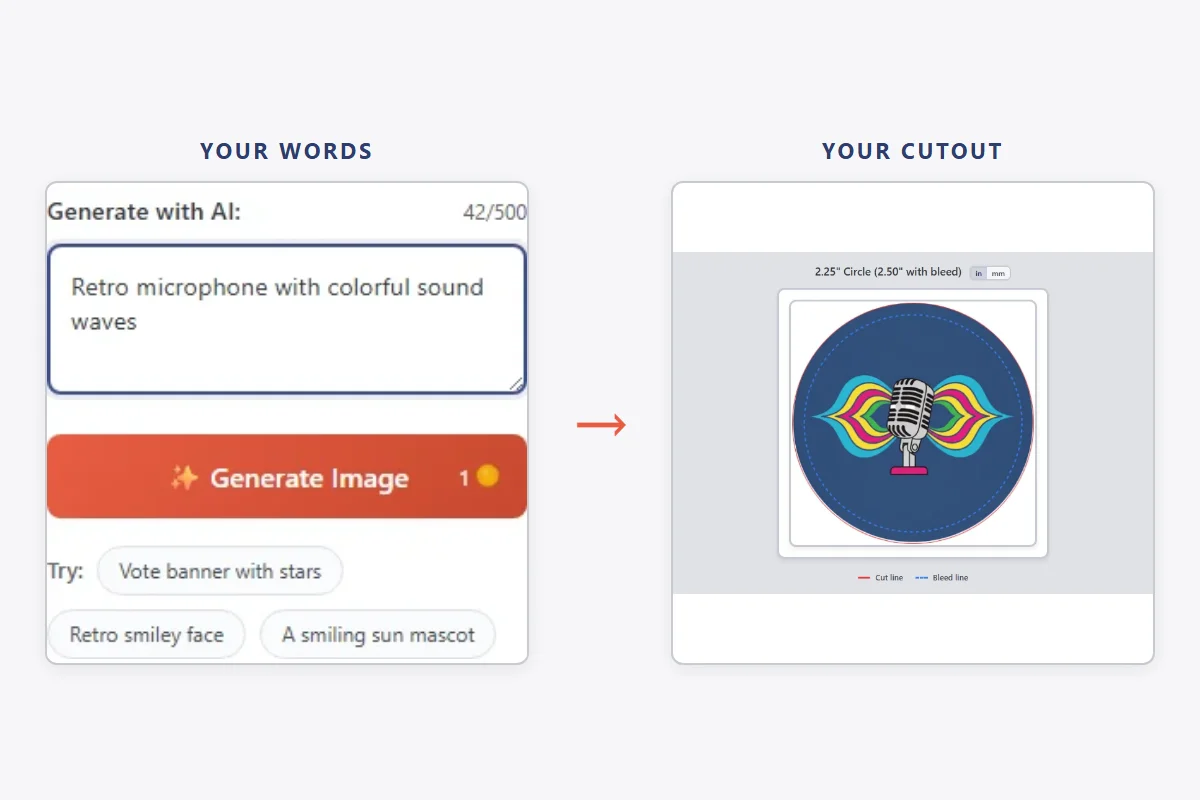
Generate Images from Text
Describe what you want in plain English: "Retro microphone with colorful sound waves" or "Cute cartoon bee on honeycomb background." Our AI creates print-ready artwork in seconds.
The generated images are already sized and formatted for cutouts, no need to crop, resize, or adjust. They're designed to work with circular and square formats, with important elements centered in the safe zone.
Don't like the first result? Generate variations until you get exactly what you need. Each generation costs 1 AI credit.
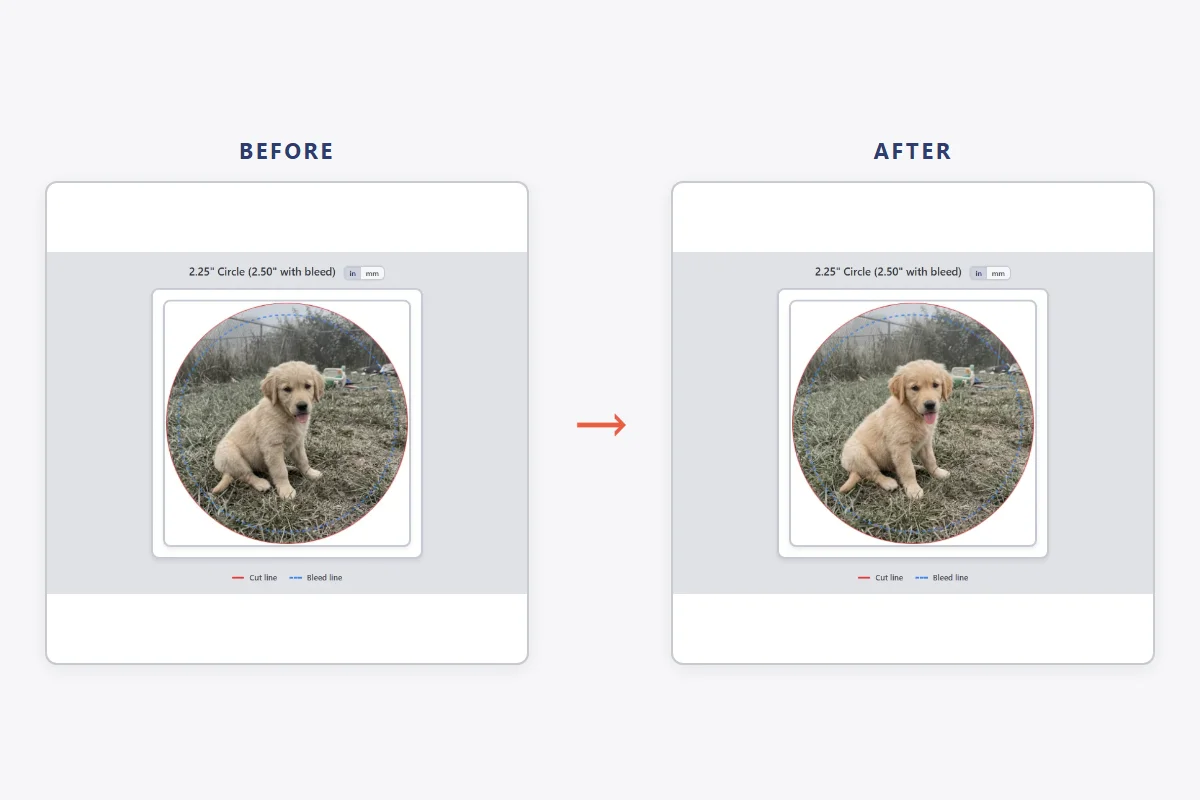
Enhance Quality & Remove Backgrounds
Got a blurry logo from a client? A low-res image from Google? AI enhancement sharpens and upscales images so they look crisp when printed — not pixelated and amateur.
Background removal is one click. Upload a photo with a busy background, and AI extracts just the subject with clean edges. Perfect for turning any image into print-ready art.
Both tools cost 1 AI credit per use. The enhancement is smart enough to know what to sharpen and what to leave smooth — faces, text, and edges get special attention.
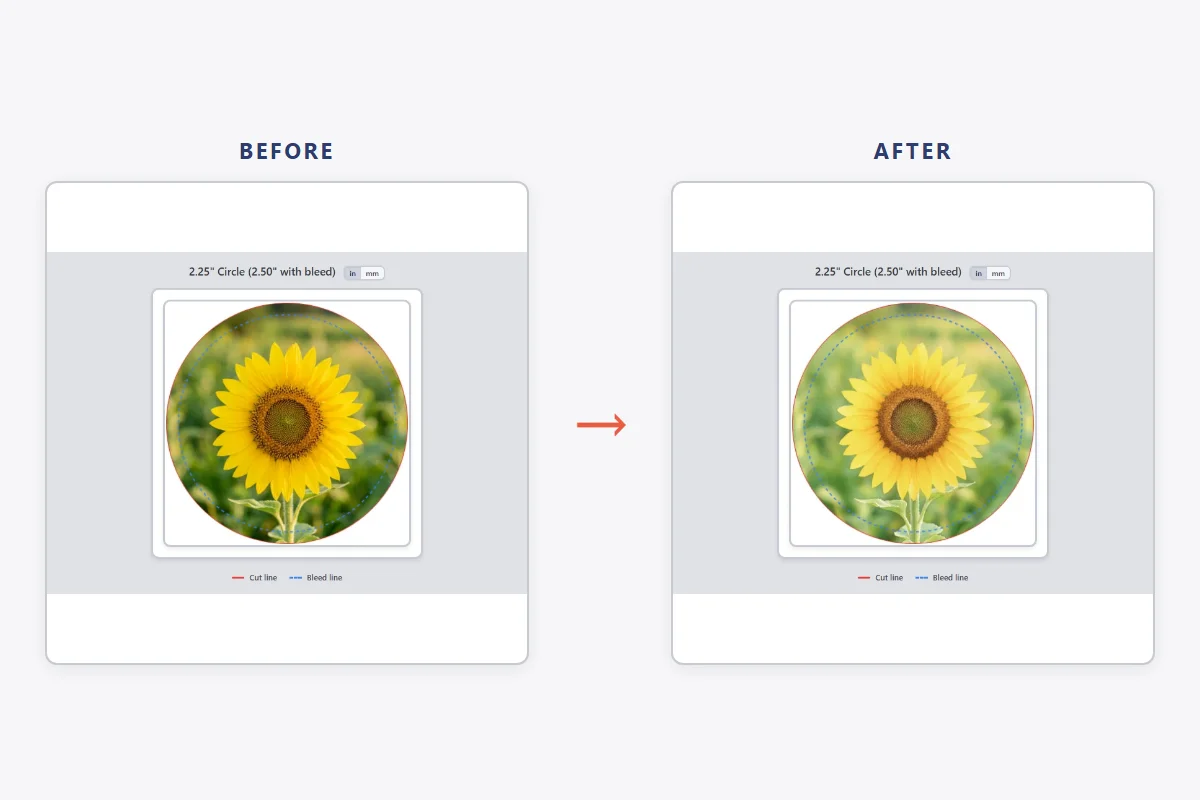
Style Transfer & Modification
Transform photos into artwork: watercolor effects, pop art styles, vintage filters, comic book looks. Upload a regular photo, choose a style, and AI recreates it with that aesthetic.
You can also modify existing images with text prompts: "Add a rainbow in the background" or "Make the colors more vibrant." The AI understands context and makes intelligent edits.
These tools unlock creative possibilities that would take hours in traditional software. Great for turning customer photos into unique designs.
All AI operations use 1 credit. Maker gets 10/month, Producer gets 100/month. Need more? Purchase credit packs that never expire.
Batch Processing & Personalization
Handle high-volume orders and personalized designs efficiently
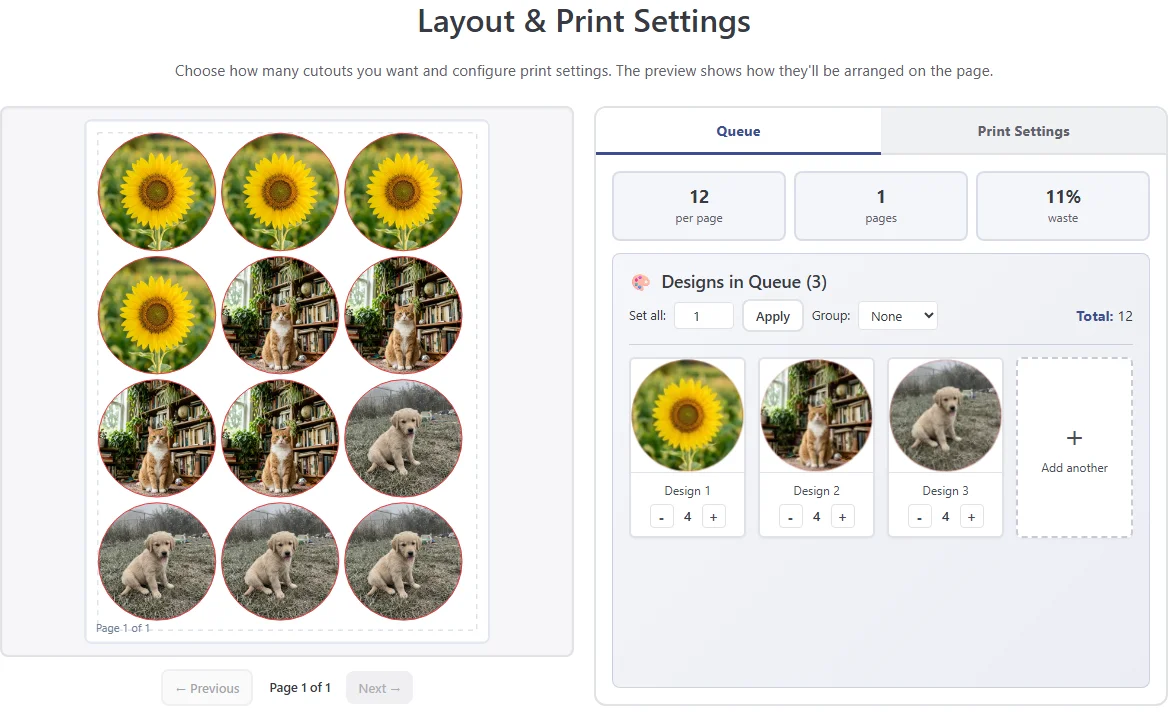
Print Queue & Page Layout
Stop printing one design at a time. Add multiple designs to your print queue, set quantities for each, and export everything in one optimized PDF. We arrange cutouts efficiently on the page so you waste less paper.
Mixed sizes? No problem. The layout algorithm handles different cutout sizes on the same page, fitting as many as possible while maintaining proper spacing for cutting.
Queue limits by tier: Tinker (free) can queue 1 design. Maker gets 5. Producer gets 100 — enough for even the largest batch orders. Phones and tablets hold fewer at a time; use a computer to batch the full 100.
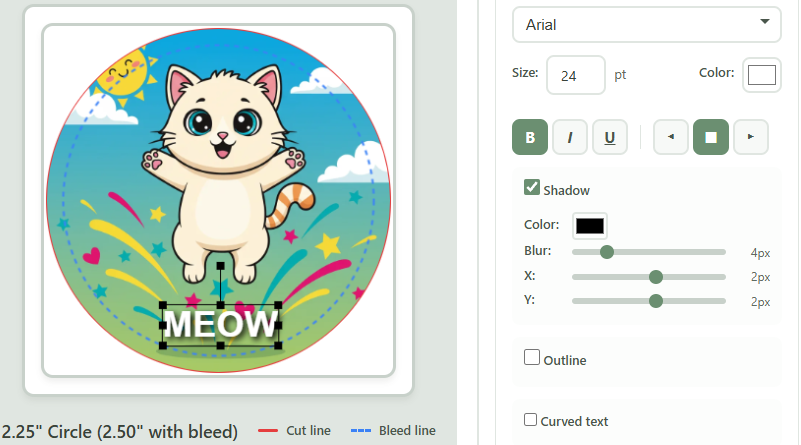
Text Layers & Arc Text
Add text directly to your designs. Choose from 12 premium fonts selected specifically for small-format readability. Adjust size, color, and position to get exactly the look you want.
Arc text curves your words to follow the circular edge of your cutout, the classic "VOTE FOR" at top and "PEDRO" at bottom look. You control the curve radius and position.
Text layers are a Producer feature. Producer gets 5 layers per design, enough for complex designs with multiple text elements.
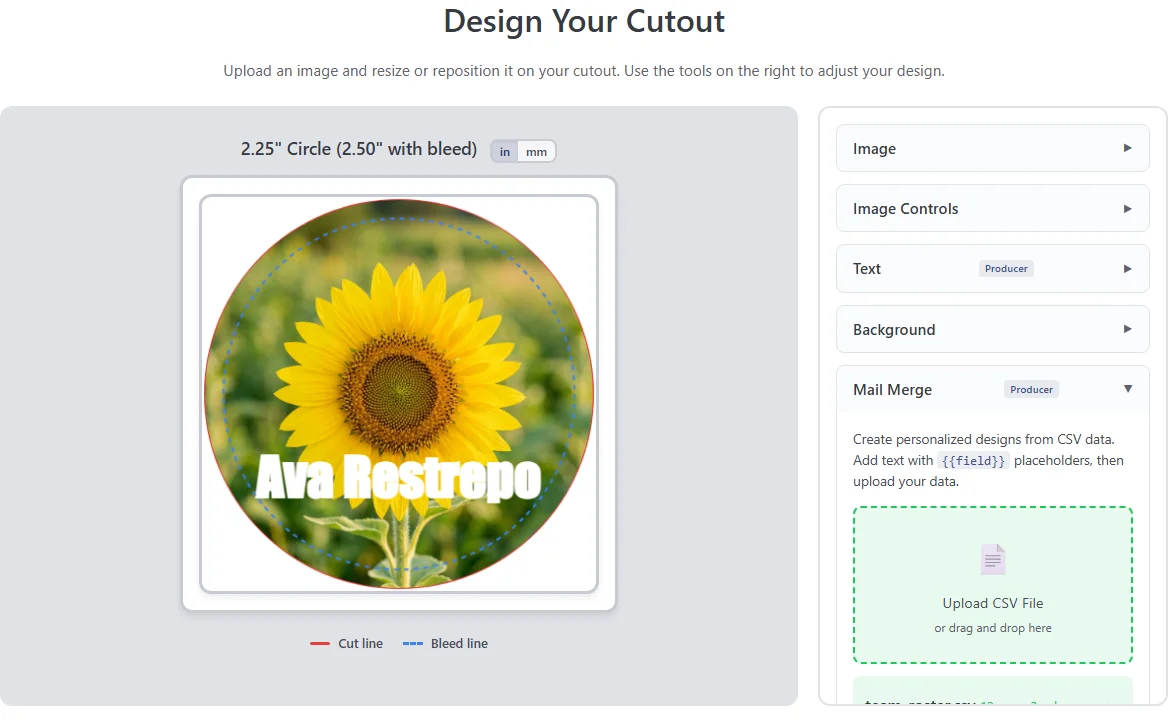
Mail Merge from CSV
Upload a spreadsheet with names, and Cutout Designer generates a personalized design for each row. Making 50 for a class? 200 for a campaign? This is how you do it without losing your mind.
Design your template once with placeholder text like {NAME} or {TEAM}. Upload your CSV. Click generate. Every variation is created automatically and added to your queue for batch export.
This single feature has saved makers hundreds of hours. What used to take an entire weekend now takes 10 minutes.
Save & Reuse
Build a library of designs and templates you can access anytime
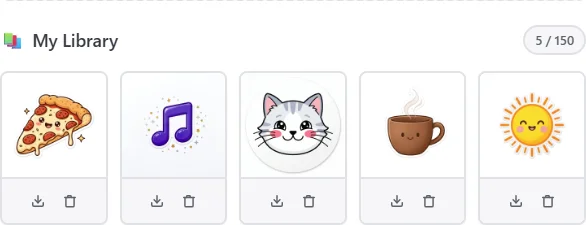
Saved Designs
Save your designs to access later. Come back tomorrow, next week, or next year — your work is waiting. Perfect for seasonal designs you reuse annually or customer favorites you make repeatedly.
Each saved design preserves everything: image positioning, zoom level, text layers, and settings. Load a saved design and you're back exactly where you left off.
Storage limits by tier: Maker stores 25 designs. Producer stores 150 — enough for a full product catalog.
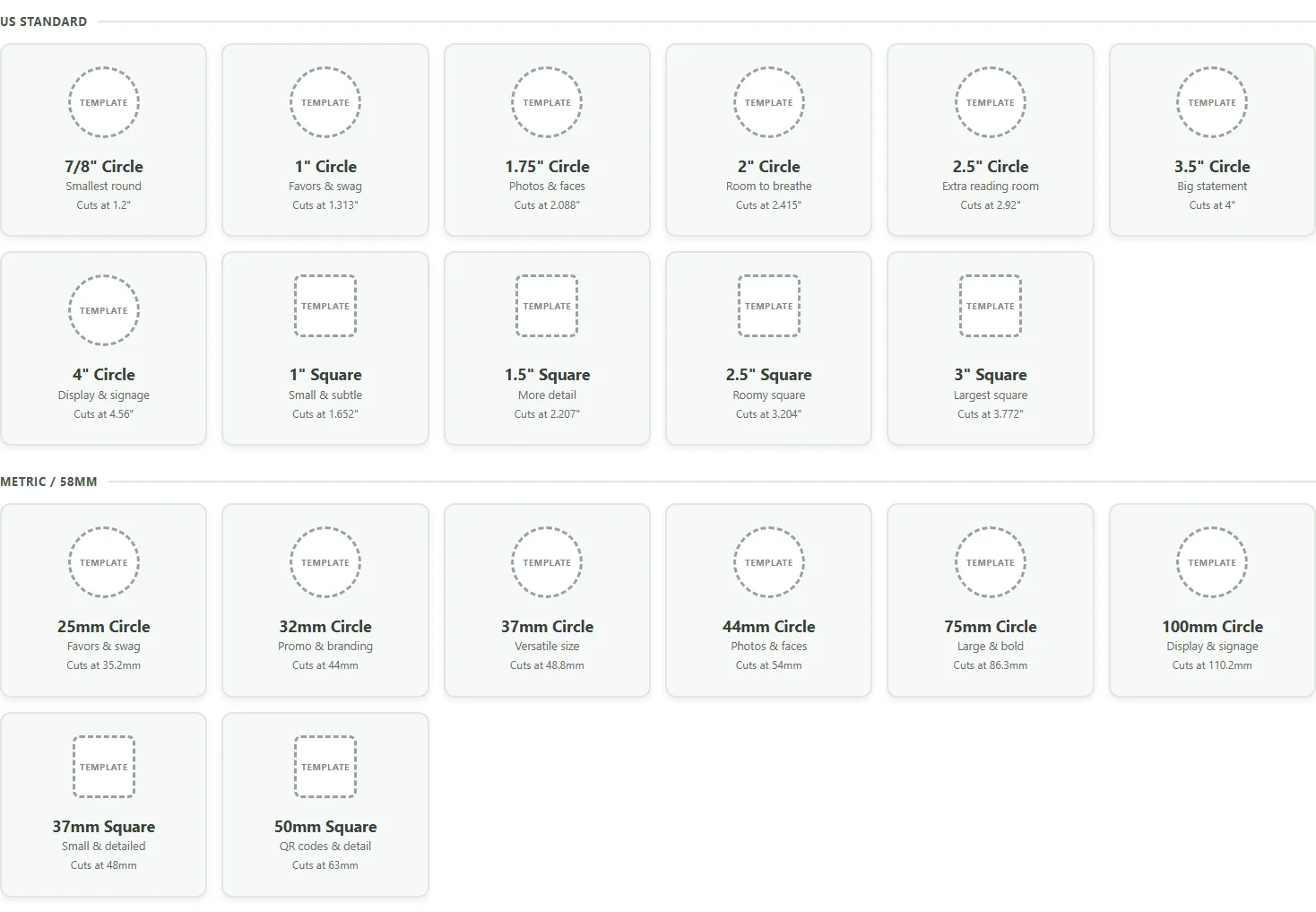
Custom Templates & Shapes
Got a non-standard cutout size? Equipment that uses different dimensions? Create custom templates with your exact specifications, and they'll appear alongside the standard sizes in your interface.
Templates save the cutout size, shape, and bleed settings. Once created, they work just like built-in sizes, with all the same positioning tools and export options.
Template limits by tier: Maker can save 10 custom templates. Producer gets 100, enough for any equipment collection.
Uploading custom shapes for non-circular cutouts like hearts, stars, or rectangles is a Producer feature.
Available on: Maker (10 templates), Producer (100 templates, plus custom shapes)Technical Capabilities
Everything Cutout Designer handles so you don't have to
Supported Sizes
- 1" circle
- 1.25" circle
- 1.5" circle
- 2" circle
- 2.25" circle
- 3" circle
- 1" square
- 1.5" square
- 2" square
- 2.25" heart
- Custom sizes and shapes
Print & Export
- Print-ready PDF output
- Bleed matched to real press specs
- Cut guide marks on every cutout
- Letter (8.5×11) page layout
- Tabloid (11×17) page layout
- Fill Page auto-arrangement
- Mixed-size layouts on one page
Design Tools
- Upload JPG, PNG, WebP images
- Drag, zoom, and rotate
- Text layers with custom fonts
- Background color picker
- Live bleed and cut guide preview
- Resolution quality warnings
AI Features
- Text-to-image generation
- Background removal
- Image enhancement
- Custom edit prompts
- Style transfer
- Powered by Google Gemini, OpenAI, PhotoRoom
Batch & Scale
- Multiple designs per page
- Design queue for multi-design projects
- Mail merge with CSV data
- Per-design quantity controls
- Save designs to reusable library
- Custom templates
Compatibility
- Works in any modern browser
- No software to install
- Desktop, tablet, and mobile layouts
- Outputs work with any standard craft press
- Compatible with manual and digital cutters
- Free plan: 5 designs per month, no card required
Cutout Designer vs. The Alternatives
We're not a general-purpose design tool. We're built specifically for makers.
| Task | Cutout Designer | Photoshop | Canva |
|---|---|---|---|
| Create a cutout template | 3 minutes | 30+ minutes | Not built for this |
| Calculate bleed correctly | Automatic | Manual math + guides | Not supported |
| Generate cutout artwork | Built-in AI | External tool required | Generic, not cutout-optimized |
| Remove background | One click | Manual selection tools | Available, quality varies |
| Fill page with mixed designs | Automatic layout | Manual arrangement | Not possible |
| Create 50 personalized designs | Mail merge (10 min) | 50 manual exports | 50 manual designs |
| Export with cut lines | Included in PDF | Separate process | Not included |
| Learning curve | None | Steep (months) | Low (but wrong tool) |
| Cost | Free – $19.99/mo | $22.99/mo | Free – $12.99/mo |
Photoshop is powerful but overkill. Canva is easy but not built for cutouts. Cutout Designer is the tool that does exactly what you need — nothing more, nothing less.
Ready to make something?
Your first design is 3 minutes away.
Start Free